As a member of Starry Gallery, I spare no effort in exploring editing photos with AI. However, through the practice of changing the backgrounds, several limitations have been discovered through these replacement works.
PC and Software
In case the same problems only happen on my hardware and software, I will provide some explanations of my setup. To complete the background change, I use Stable Diffusion as the AI tool. I believe that 16GB of RAM and 12GB of VRAM is the minimum requirements. To be capable of running the AI model, I use:
- AMD Ryzen R9 3900x
- AMD Radeon 7900xt
- 32 GB DDR4 RAM in 3600 MHz
Initially, Stable Diffusion doesn’t support AMD GPUs for some reason. However, with a certain tool, you can run it with your AMDs. You can simply follow 秋葉aaaki to empower your AMDs.
Thanks to 秋葉aaaki, installing Stable Diffusion has become easier than before. With this set of installation packages, I can start using Stable Diffusion from zero in just 30 minutes. It is really difficult for people without any coding experience to follow the command line installation, so it is a great contribution to the whole community with this installation pack.
Limitations and Solutions
Prompts
Although you can draw anything with your web UI, telling your AI what to do is not so direct because you have to use prompts (or keywords) instead of natural words. In this way, you can’t tell your AI naturally like “change the background to a stage with blue lights on it”; instead, you write keywords like “ultra quality, no people, stage, blue lights, blue, miku blue”. Since you don’t write in natural words, your expression will be limited.
The solution is simple: tell gen AI what you want. You can tell your language AI assistants like Grok, Claude, or Qwen what you want and let them convert your idea into prompts. This sometimes makes inappropriate prompts, but better than writing on your own.
Masks
Masks tell AI where to draw. AI doesn’t know which part should be changed, so it simply rewrites every pixel of your photos. This will twist the face of your model or make the whole picture cartoon-like. To solve this problem, you need a mask to cover the model, directing your AI to draw only the background.
Even though you are an expert in making masks, it is impossible to perfectly distinguish the edge of your model, so you can see a strange line between them, as shown in the following picture. For audiences who focus on details, this is a great disadvantage.
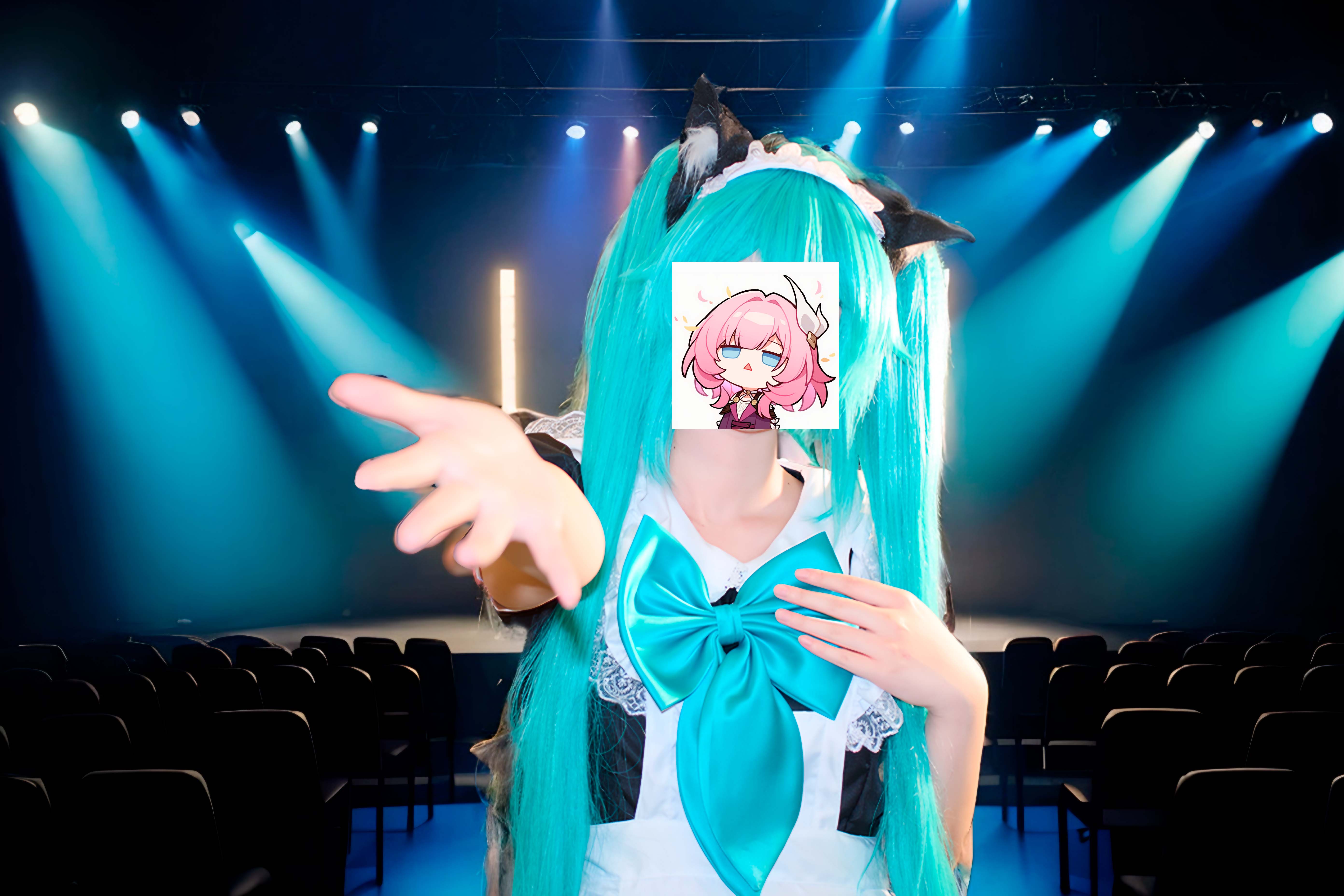
The strange edge is clear near the model’s hand.
What to draw
AI randomly draws without your instructions, so you need to briefly draw a draft for AI. By filling your picture with colours and shapes, you can make AI draw what you want, or you can play a lottery game without any draft. As the picture below shows, AI can stick to your draft and follow your prompt. In this picture, I drew a frame of light bulbs, the blue lights, and the shape of the stage. The draft is very simple, but it can effectively tell the AI what to do.
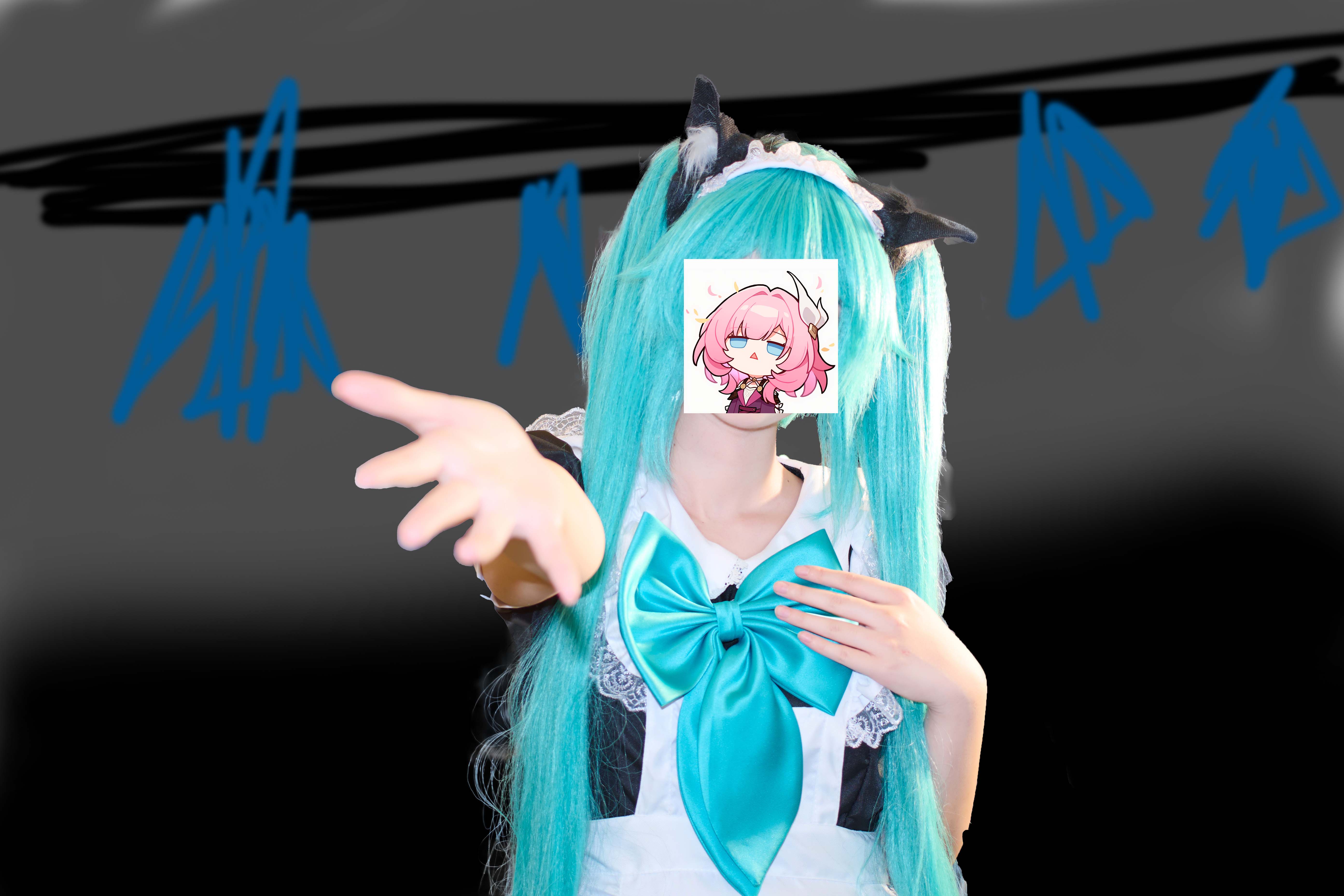
Roughly draw a draft for the AI model.
Possible room for improvement: Choosing the right model
Using a more suitable model may improve the quality. I’m using the default model provided by 秋葉aaaki, which is trained for drawing anime pictures. You can find other models on Hugging Face (or Model Scope for China mainland users). I’m testing on Qwen Image Edit recently, so you can see my report on it on this site.
Reference
ModelScope - 模型列表页. (n.d.). https://www.modelscope.cn/models
摄影成语. (2023). 手把手细致教学,绝对干货!!AI换场景全流程,人像、漫展COS摄影必学。AI应用领域 [Video]. https://www.bilibili.com/video/BV18u4y1a7s4/?spm_id_from=333.337.search-card.all.click
秋葉. (2024). 【AI绘画】SD-WebUI 整合包 / 绘世启动器 / 训练器下载导航 (长期有效). Retrieved August 21, 2025, from https://www.bilibili.com/opus/897873624905547794?spm_id_from=333.1387.0.0